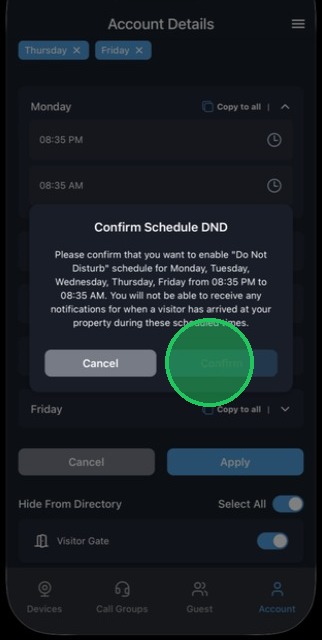
MyDoorView App - Hide from Directory and Do Not Disturb
1. Enter the mobile phone number used for your user profile in the account.
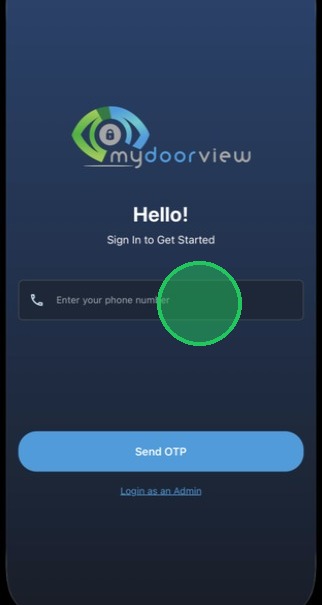
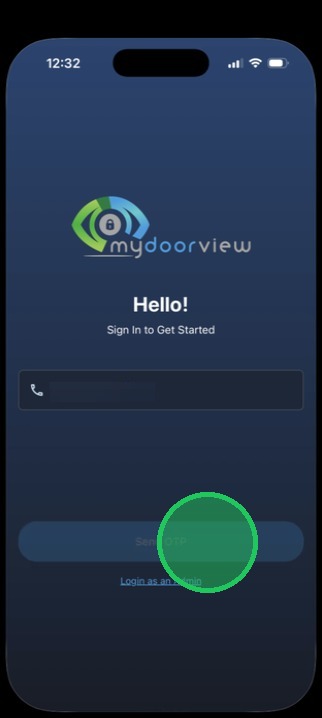
2. Tap "Send OTP"
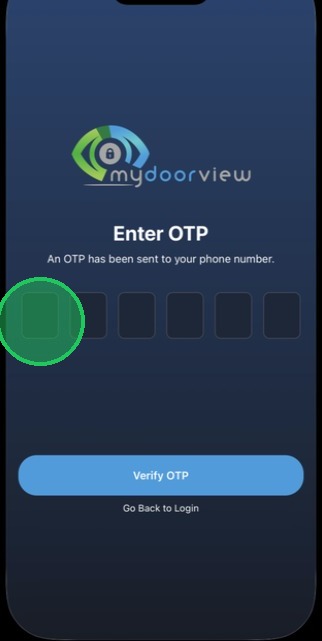
3. Enter in the OTP received via SMS
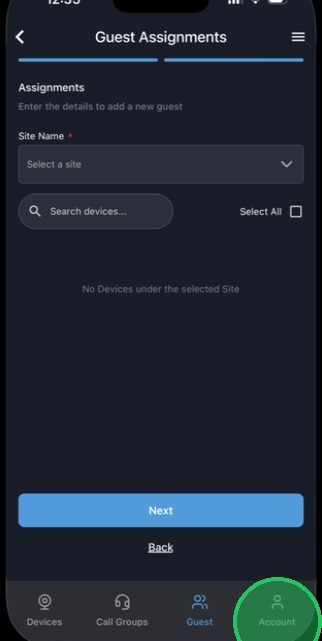
4. Click the "Account" tab
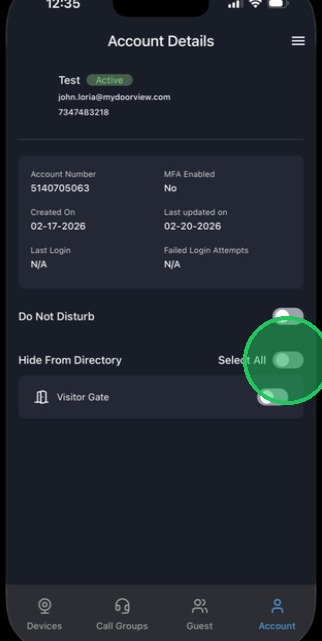
5. Hide From Directory is an option available as pictured below. This will remove you from the selected device('s) directory.
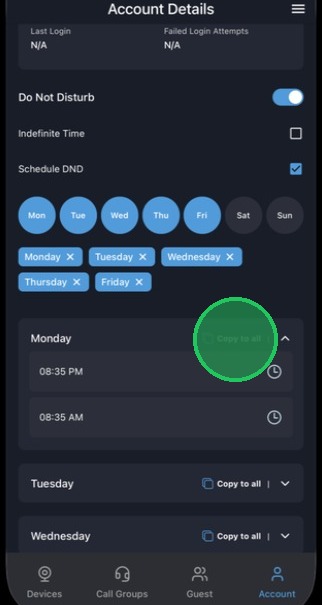
6. Do Not Disturb can be used as well and designated for specific days and hours.
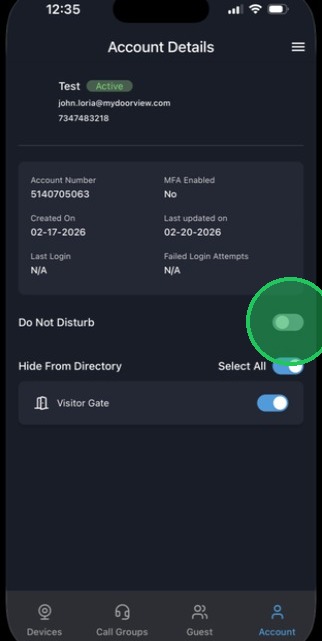
7. It can be turned in indefinitely, or set based on a schedule as pictured below
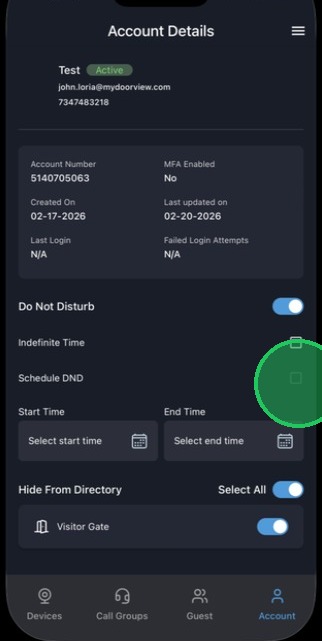
8. To set a schedule, pick the days you would like to have Do Not Disturb enabled.
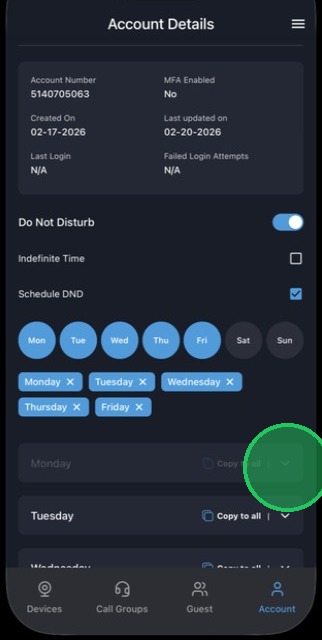
9. Tap the "Clock" icon to set the start and end time.
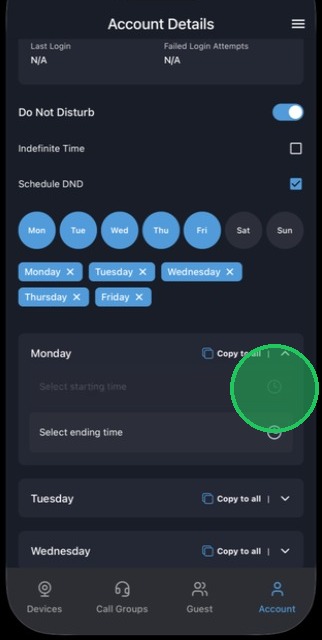
10. Set the start and end time.
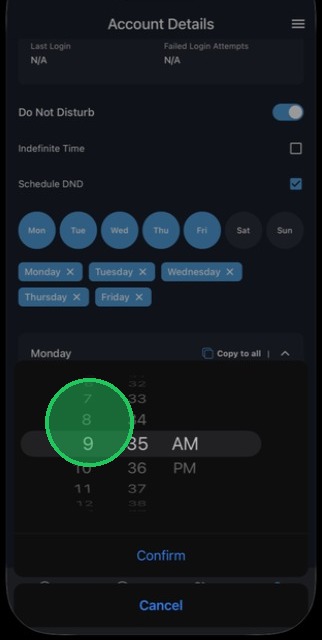
11. Tap "Confirm" to save the settings.
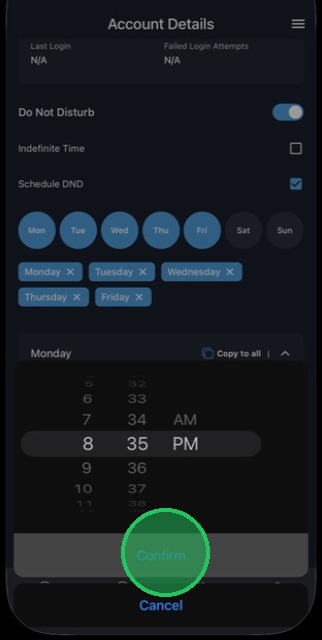
12. Tap "Copy to All" to push that time frame to all the selected days, or manually set the start and end time for each individual day if the time window varies.
13. Tap "Apply" to apply the settings.
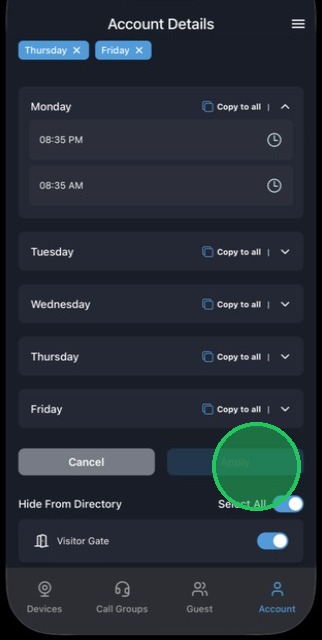
14. Tap "Confirm" to save the changes.