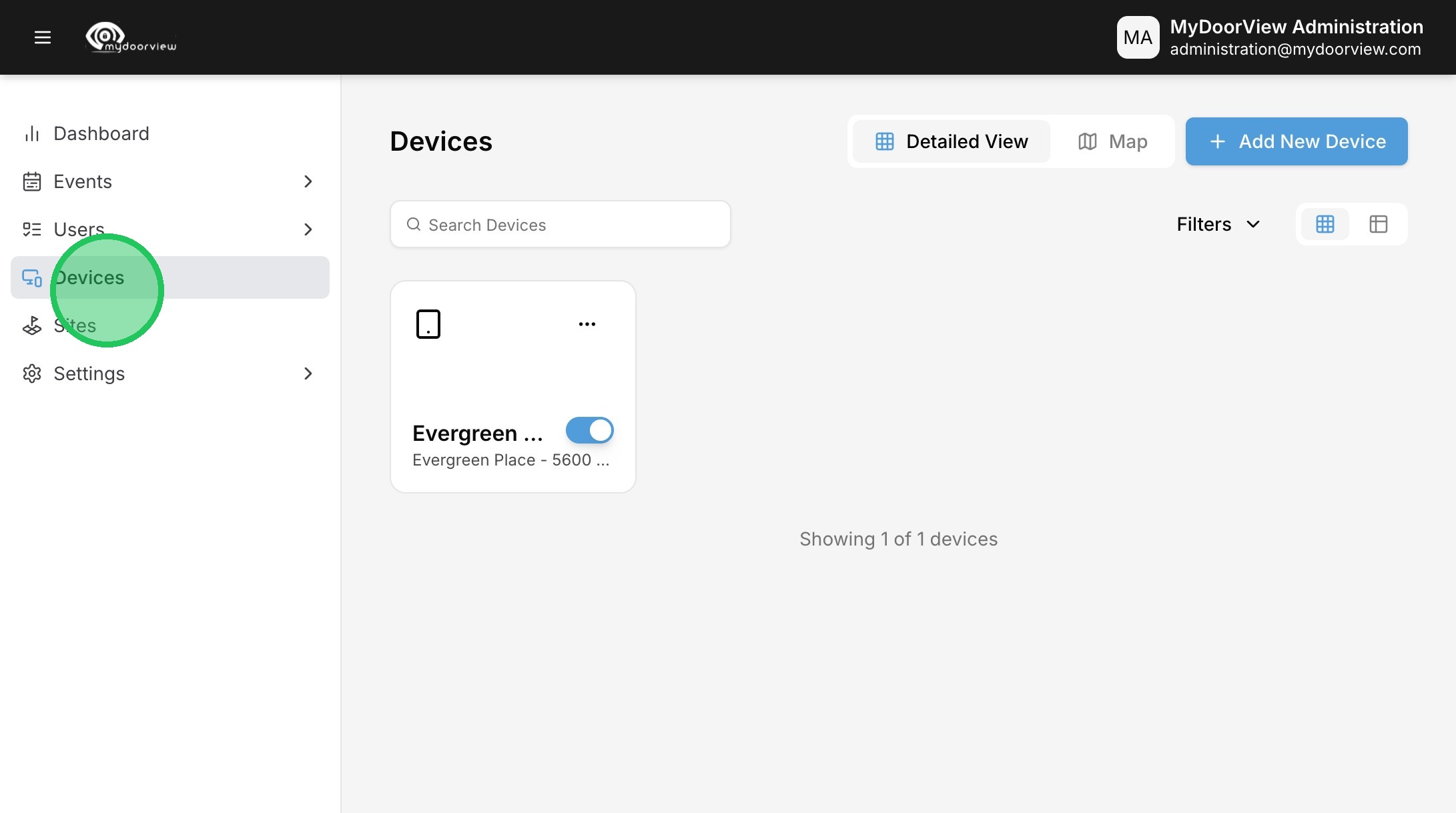
1. Navigate to https://account.mydoorview.com/device-management
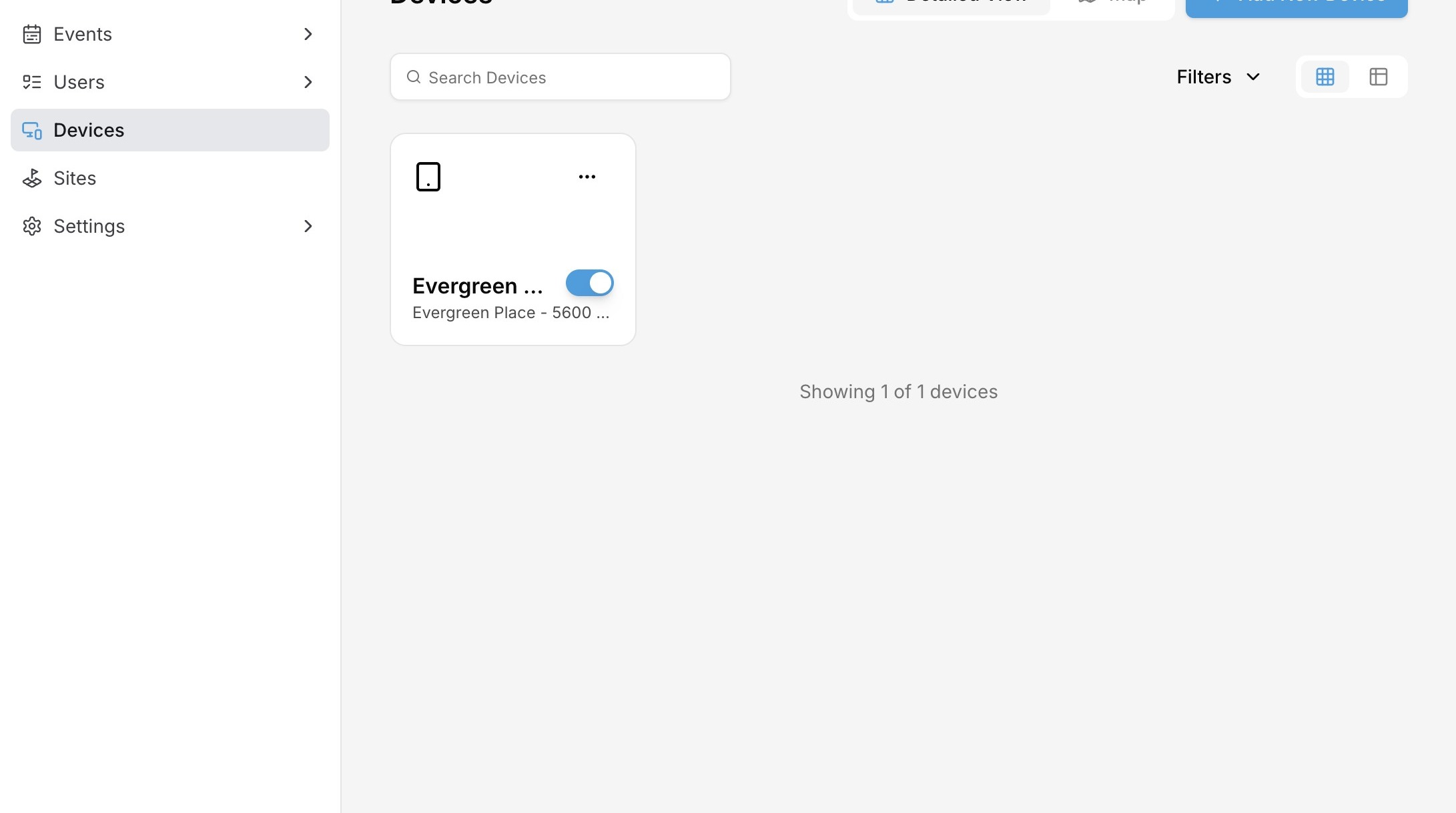
2. Click "Devices"
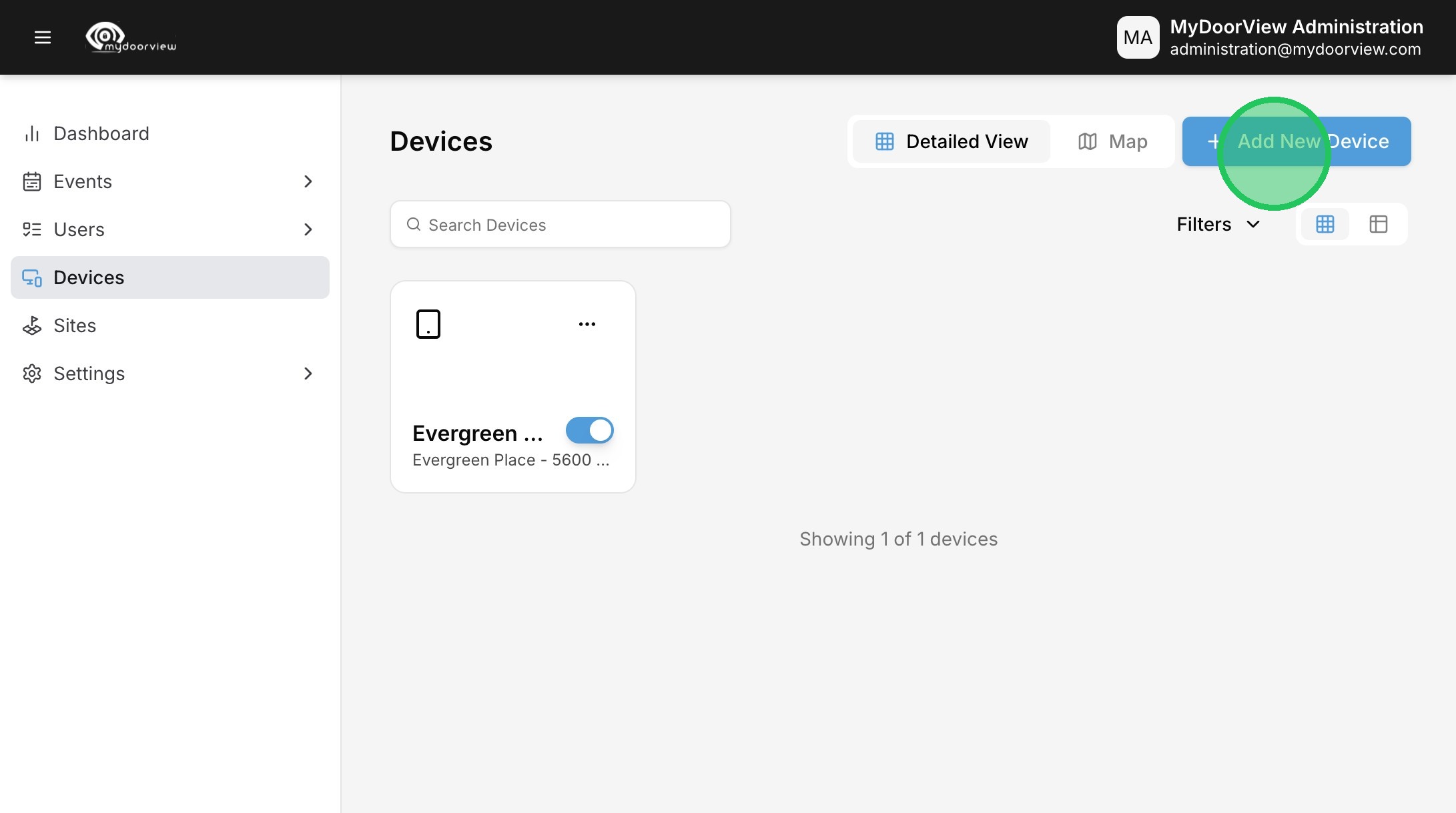
3. Click "Add New Device"
4. Click "Video Intercom"
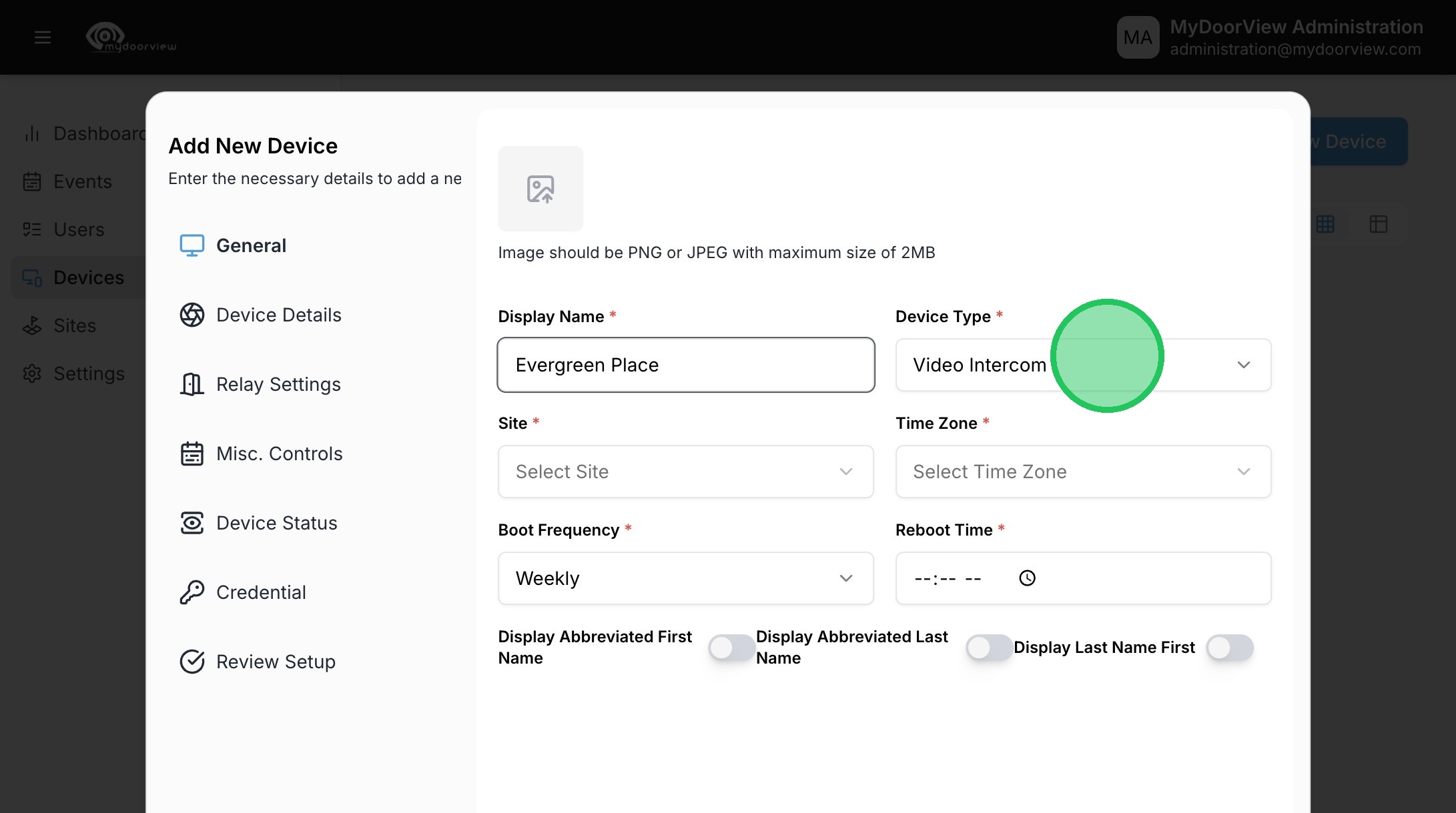
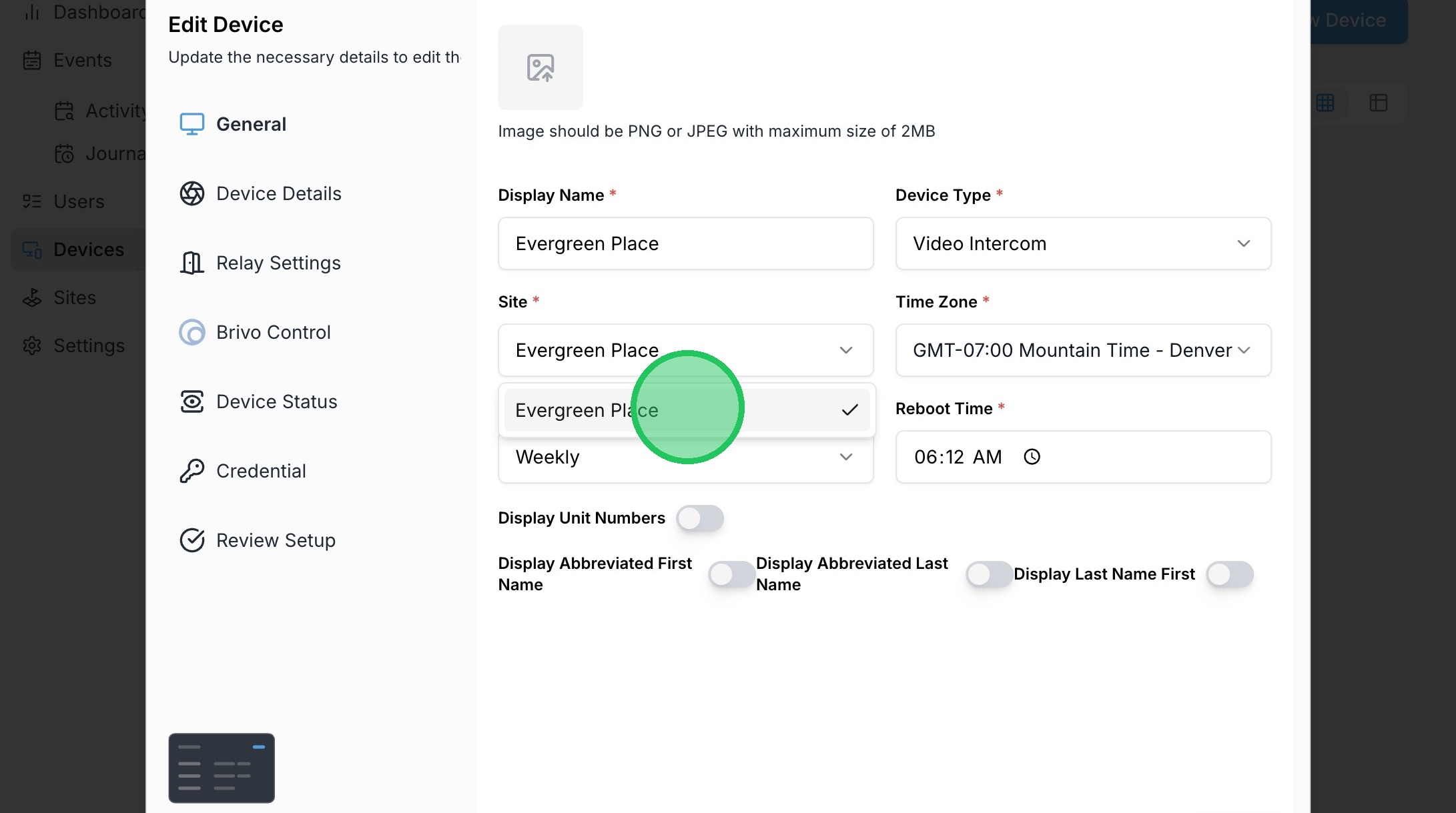
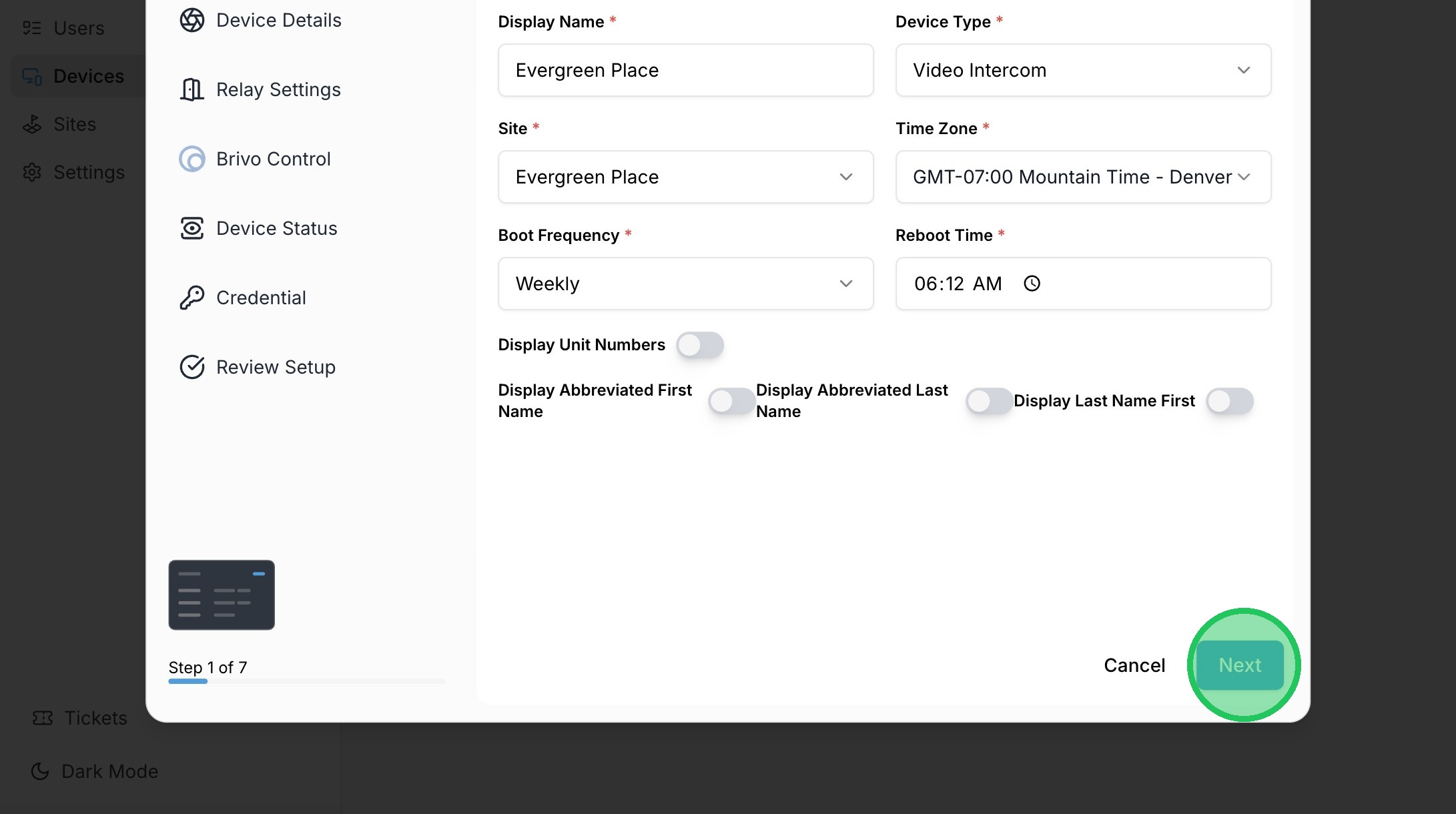
5. Select the Site to assign the device to
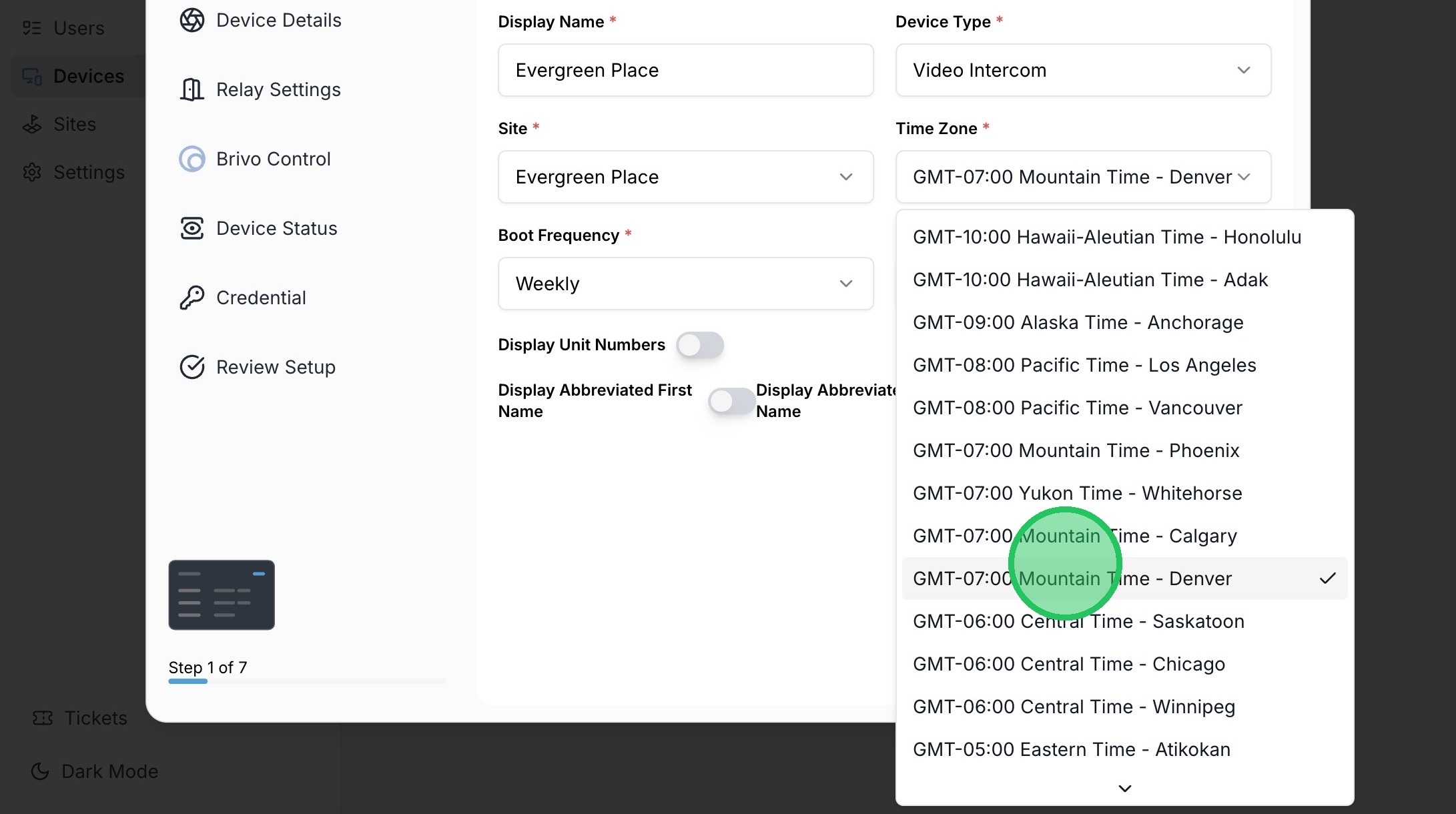
6. Select the time zone
7. Adjusted display settings for the directory as needed
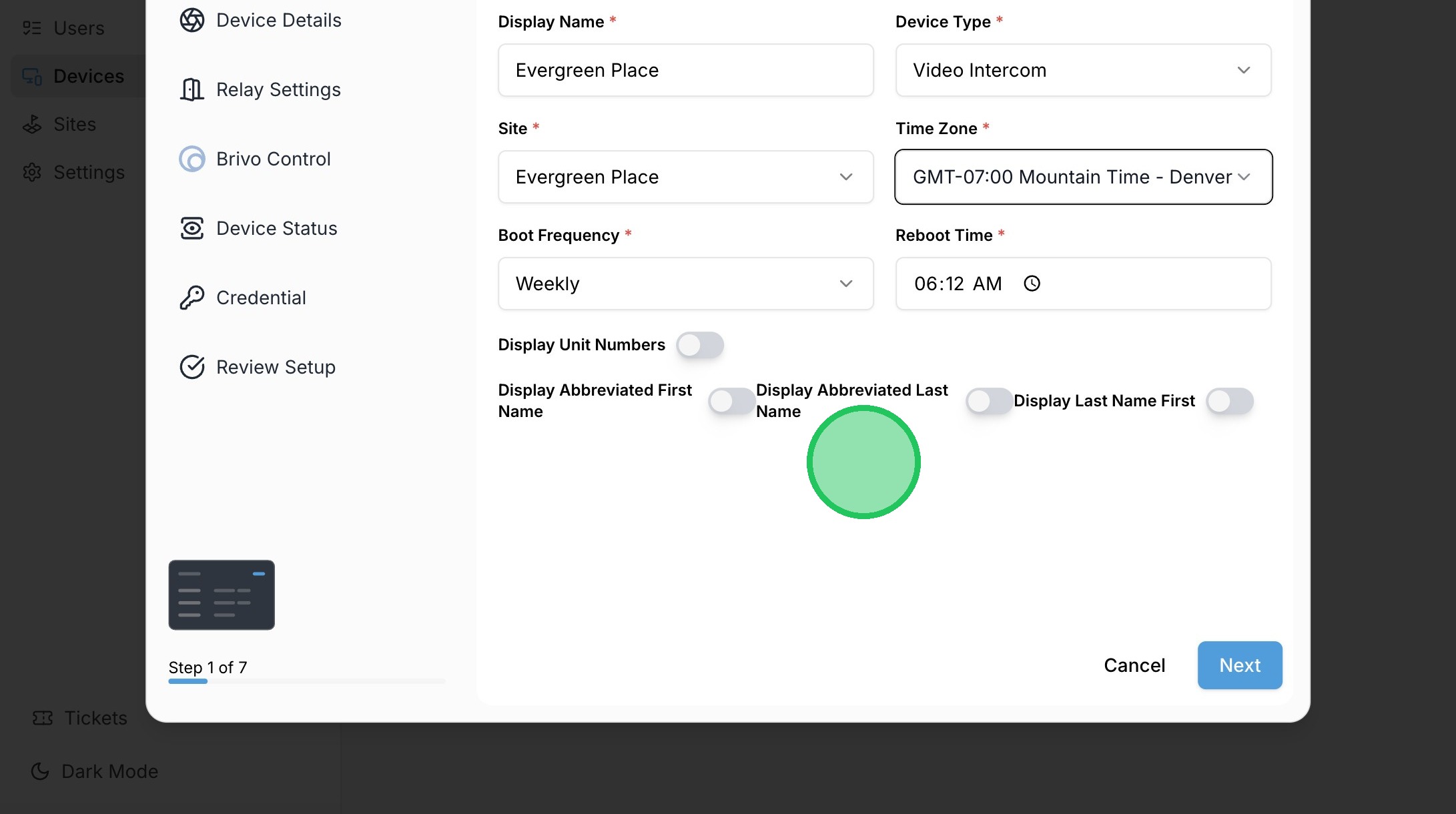
8. Click "Next"
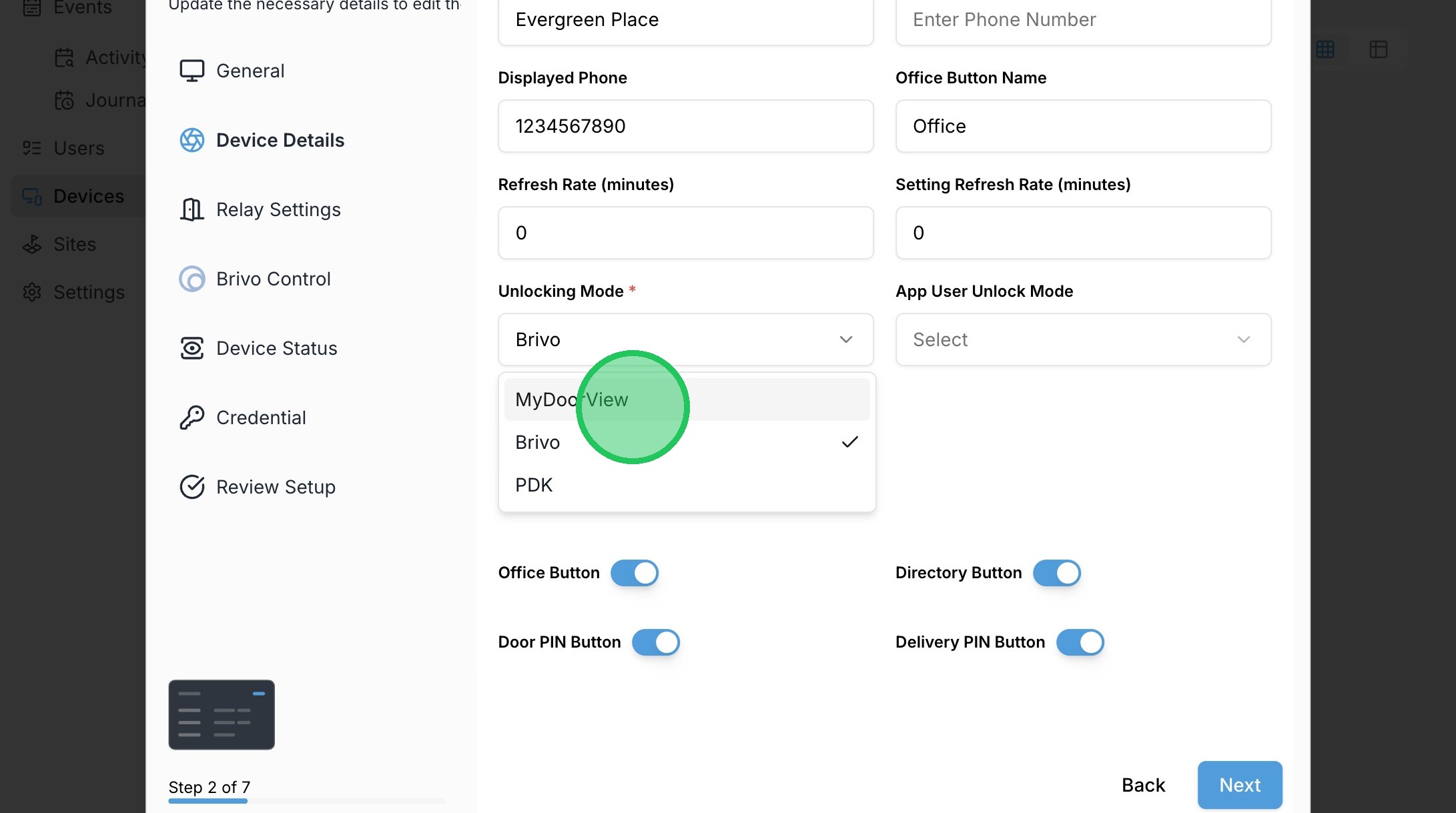
9. Select MyDoorView as the unlock mode (this can be edited to Brivo/PDK once the device is created)
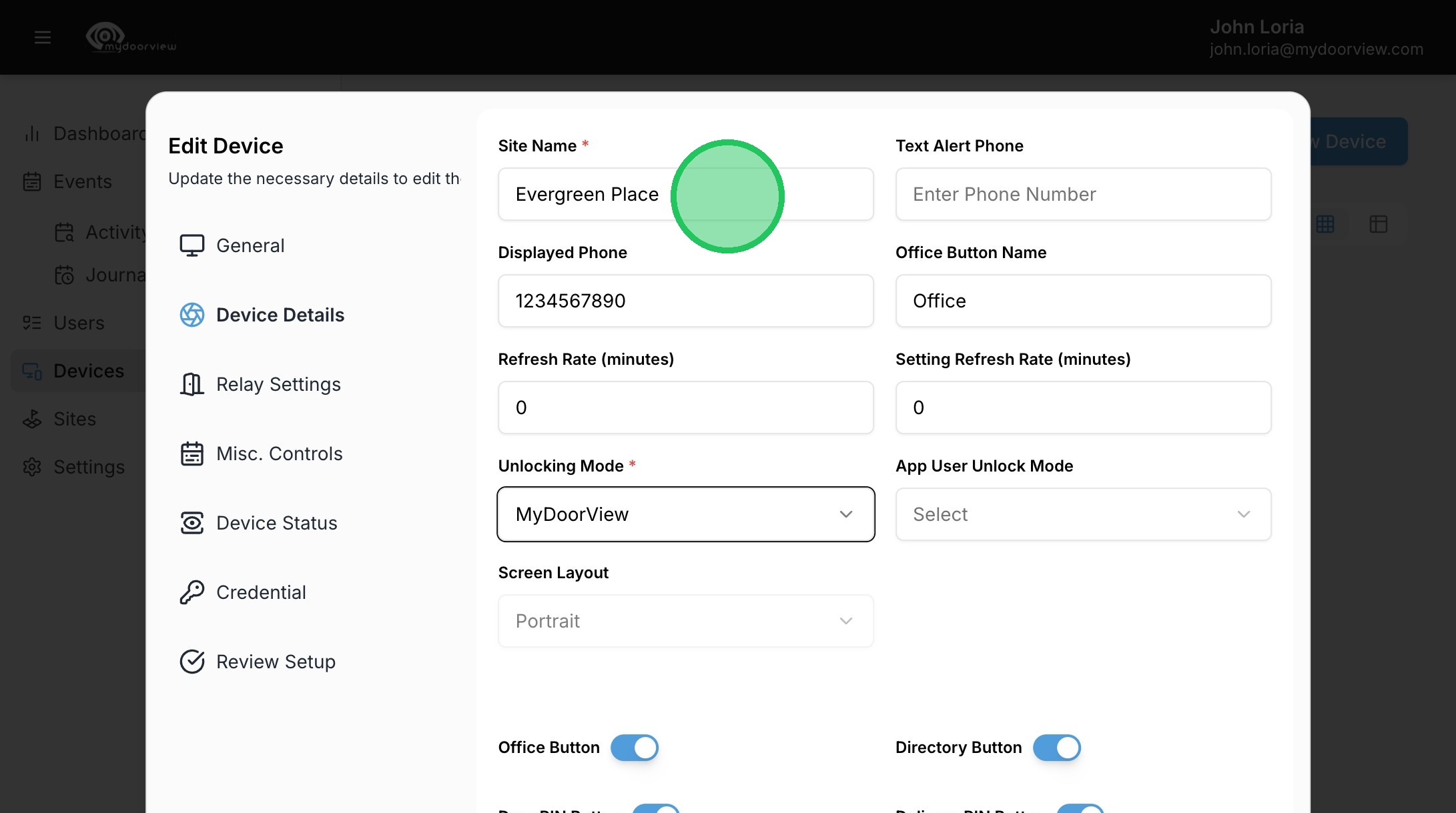
10. Enter the Site Name.
11. Enter a Displayed Phone number if desired (note that this number will be dialed with the Office Button if an Office Call Group isn't being used with the phone app).
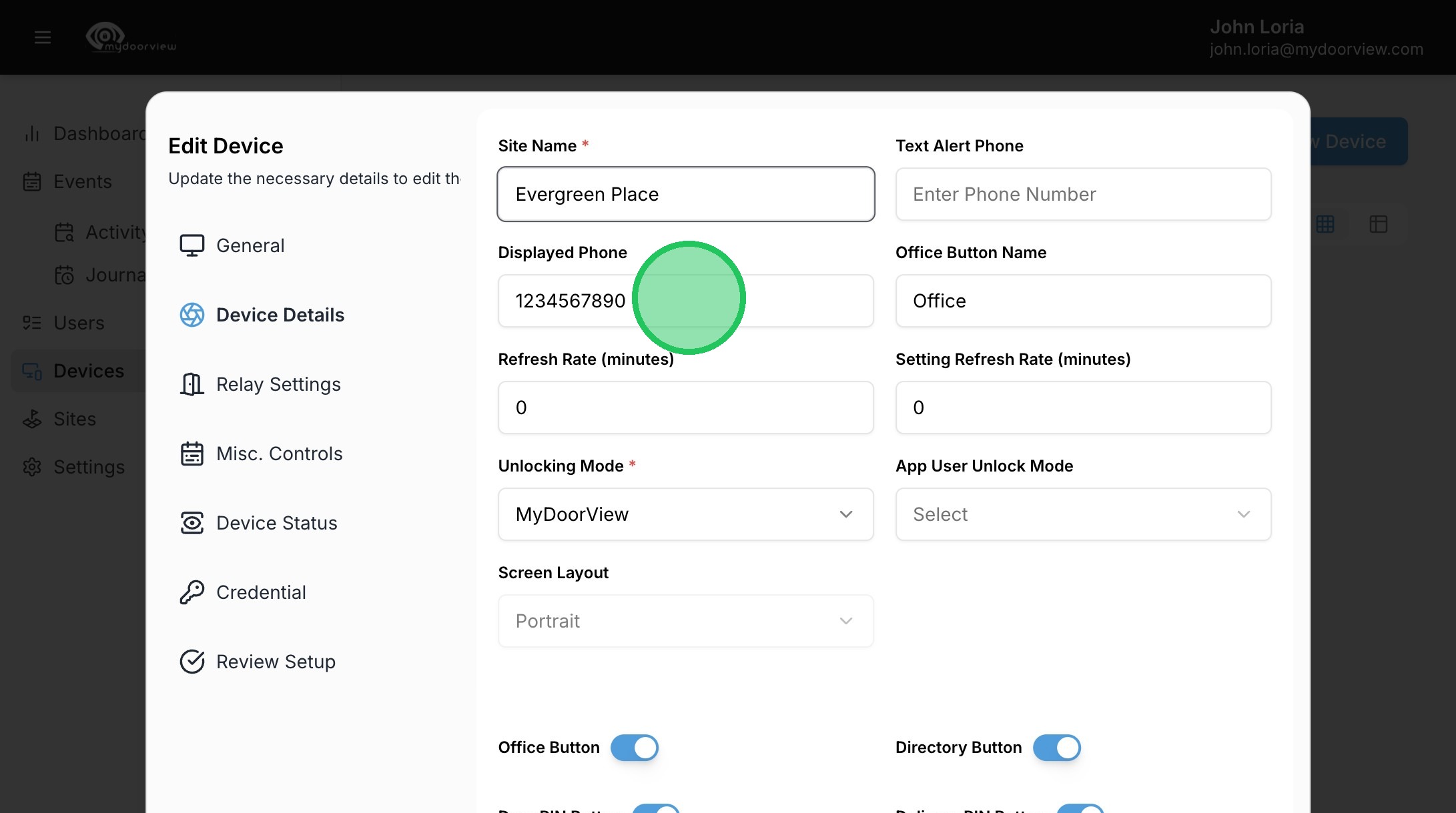
12. Adjust the name of the Office Button if needed.
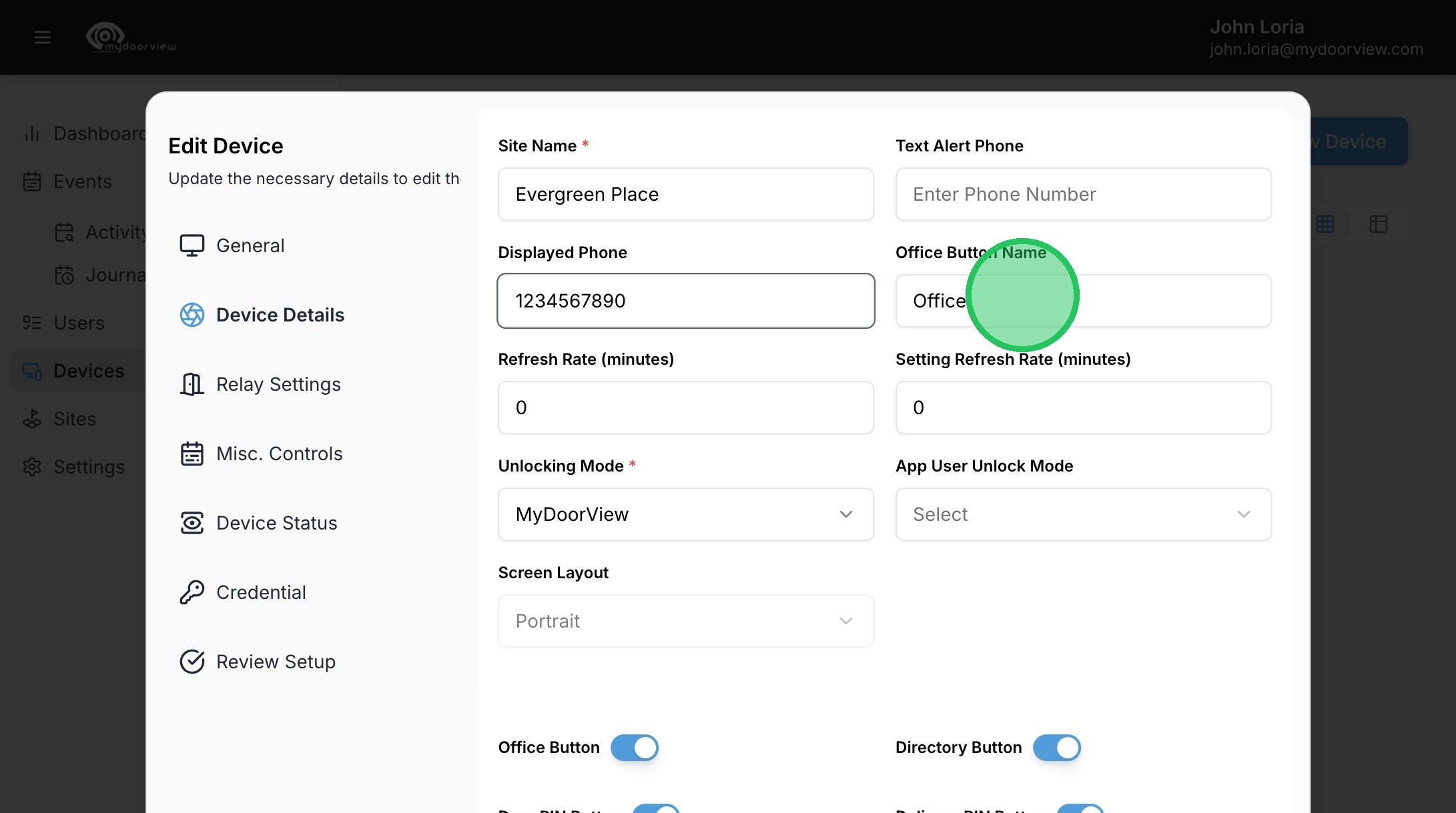
13. Turn on or off any buttons not being used on the intercom and click "Next"
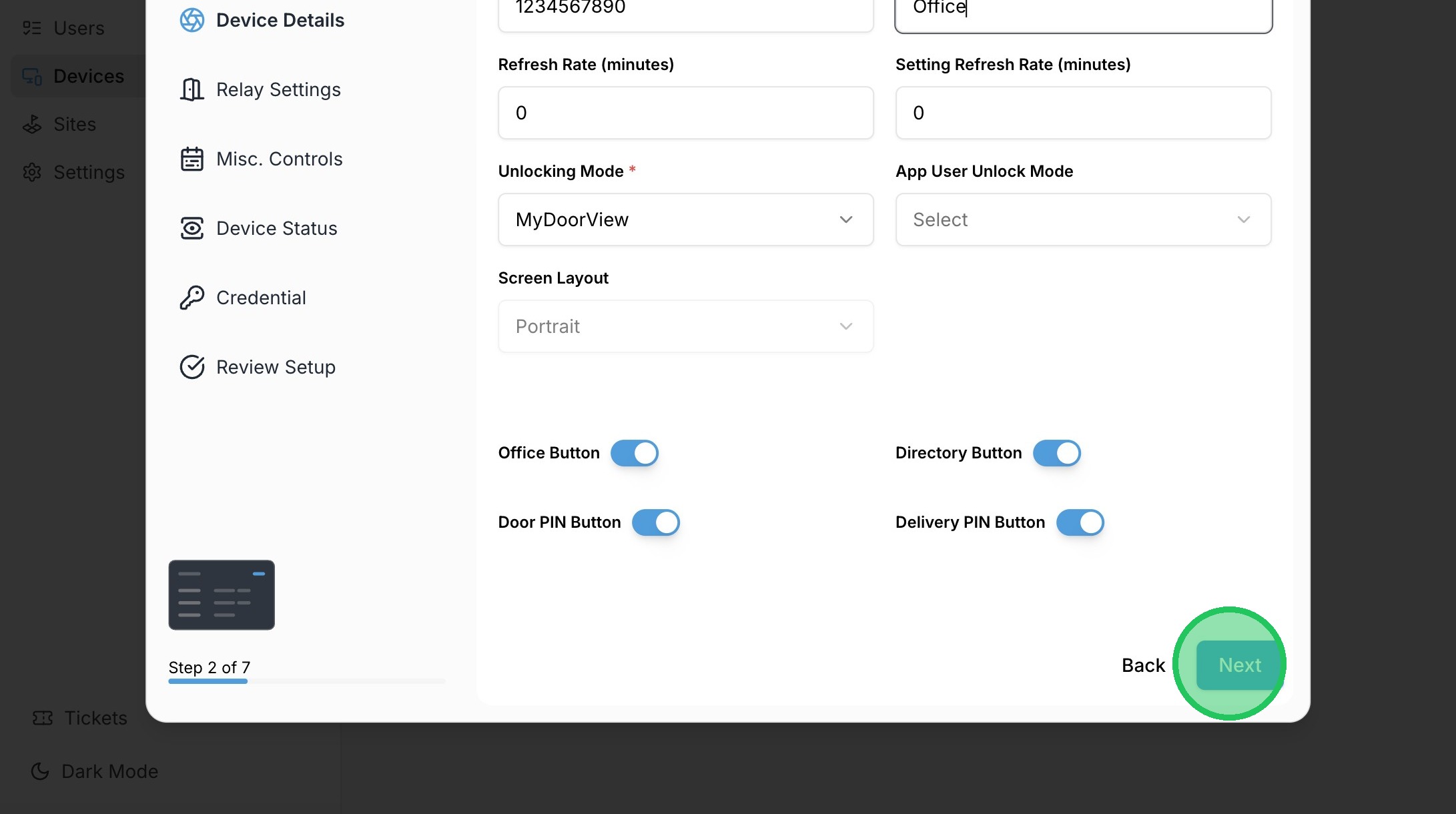
14. Adjust relay settings and states if needed and click "Next"
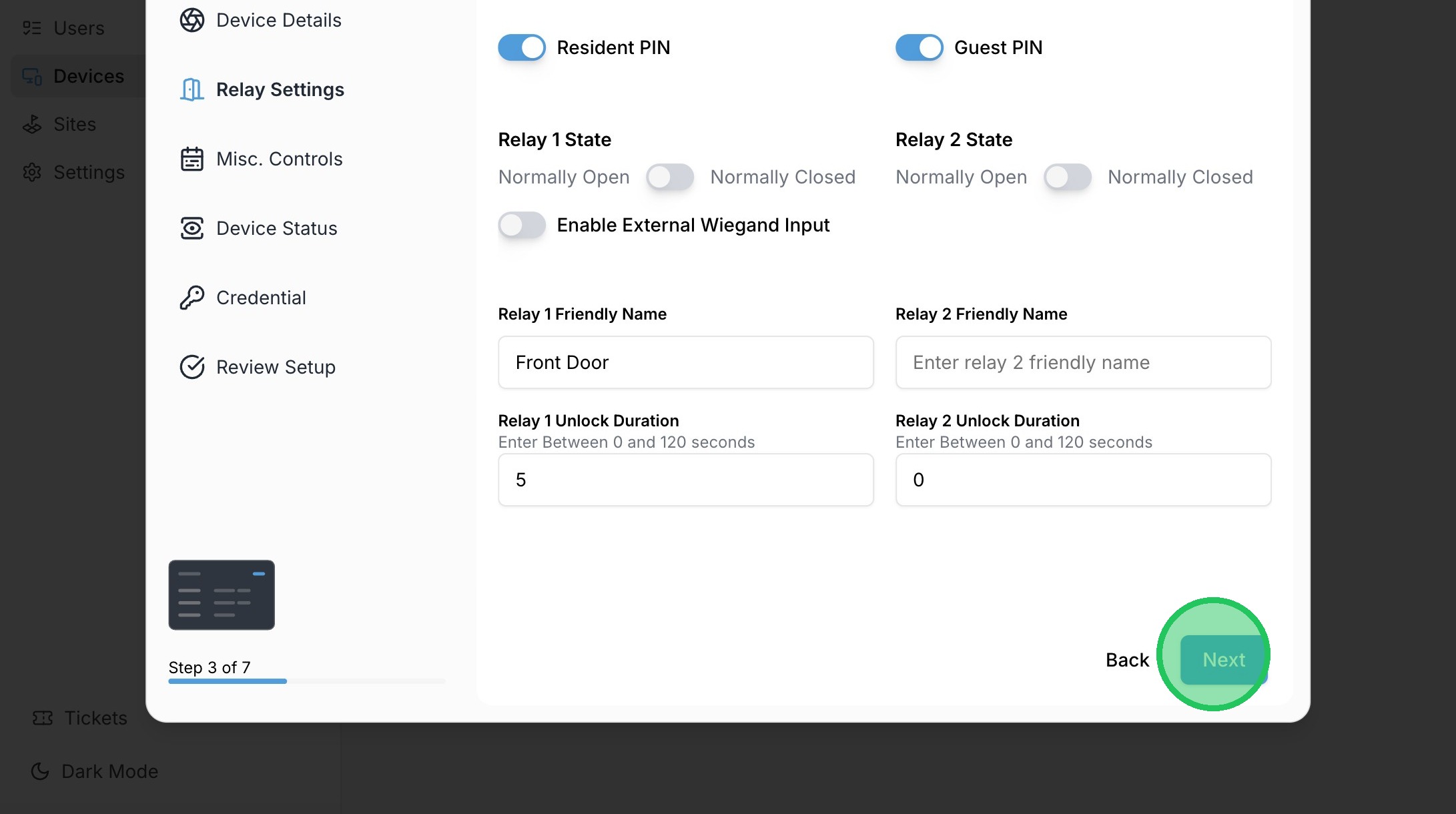
15. If needed, a hold open schedule can be set in the Misc. Controls. This will ensure the device is holding the entry point open during the schedule configured.
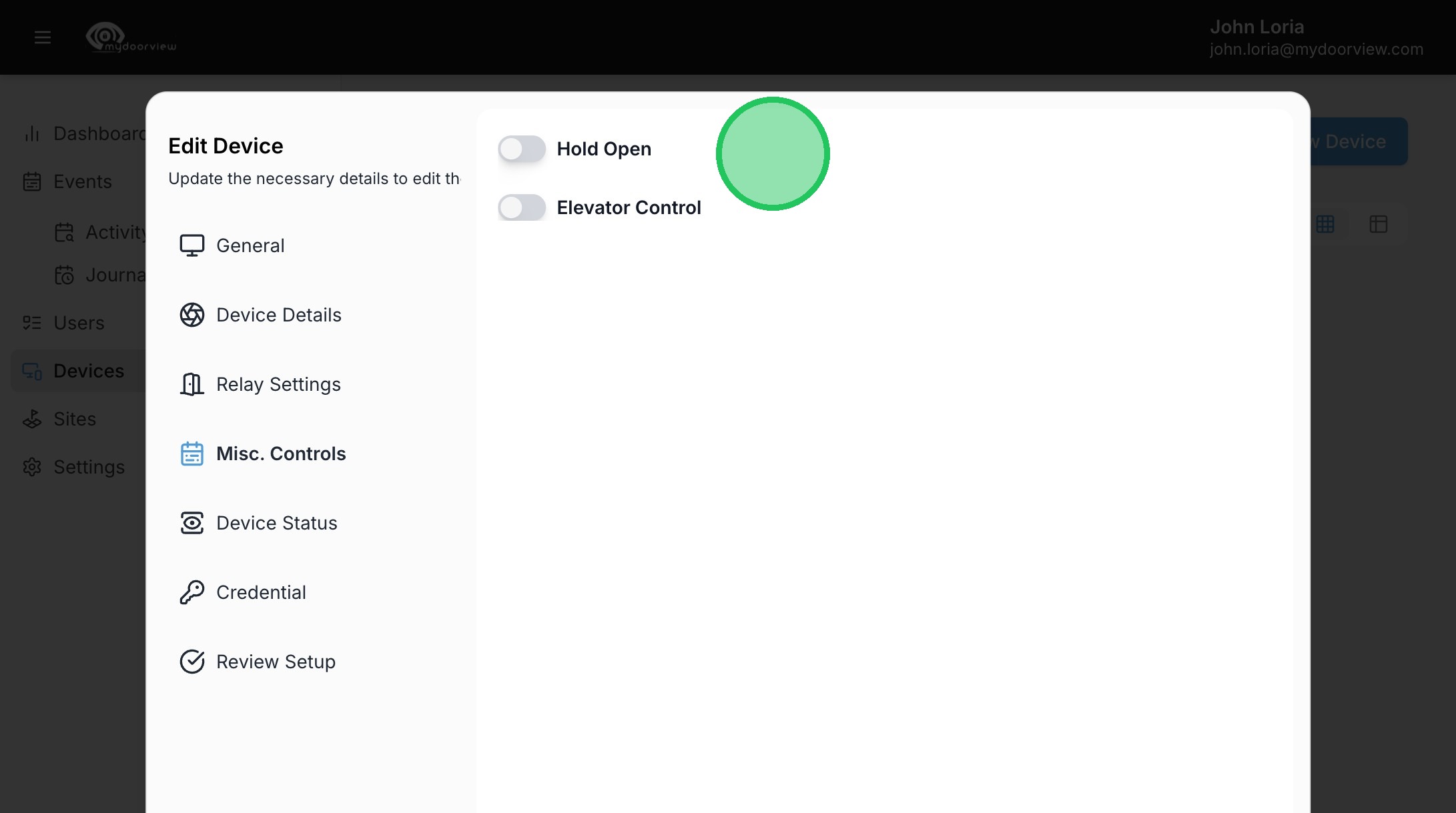
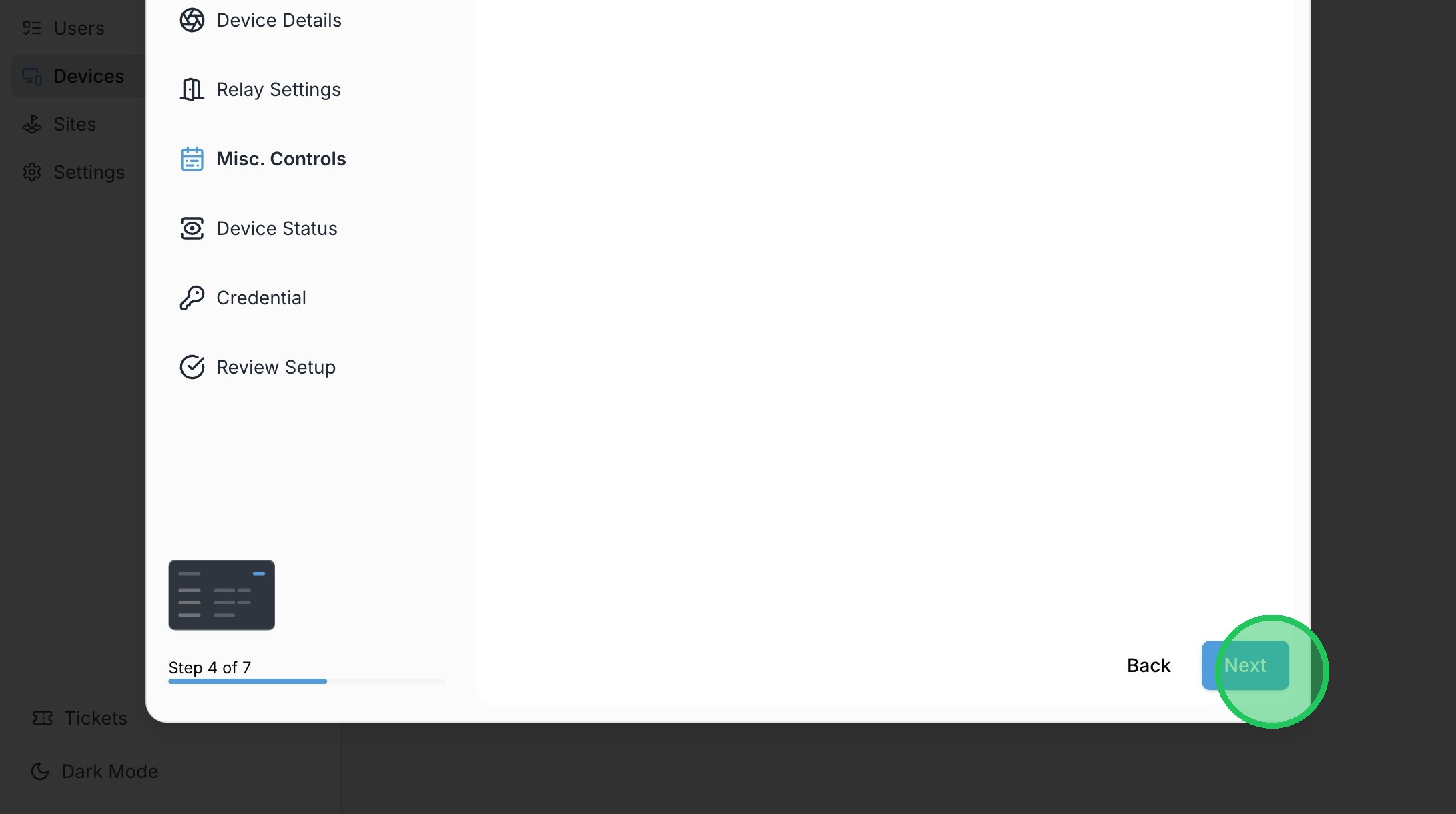
16. Click "Next"
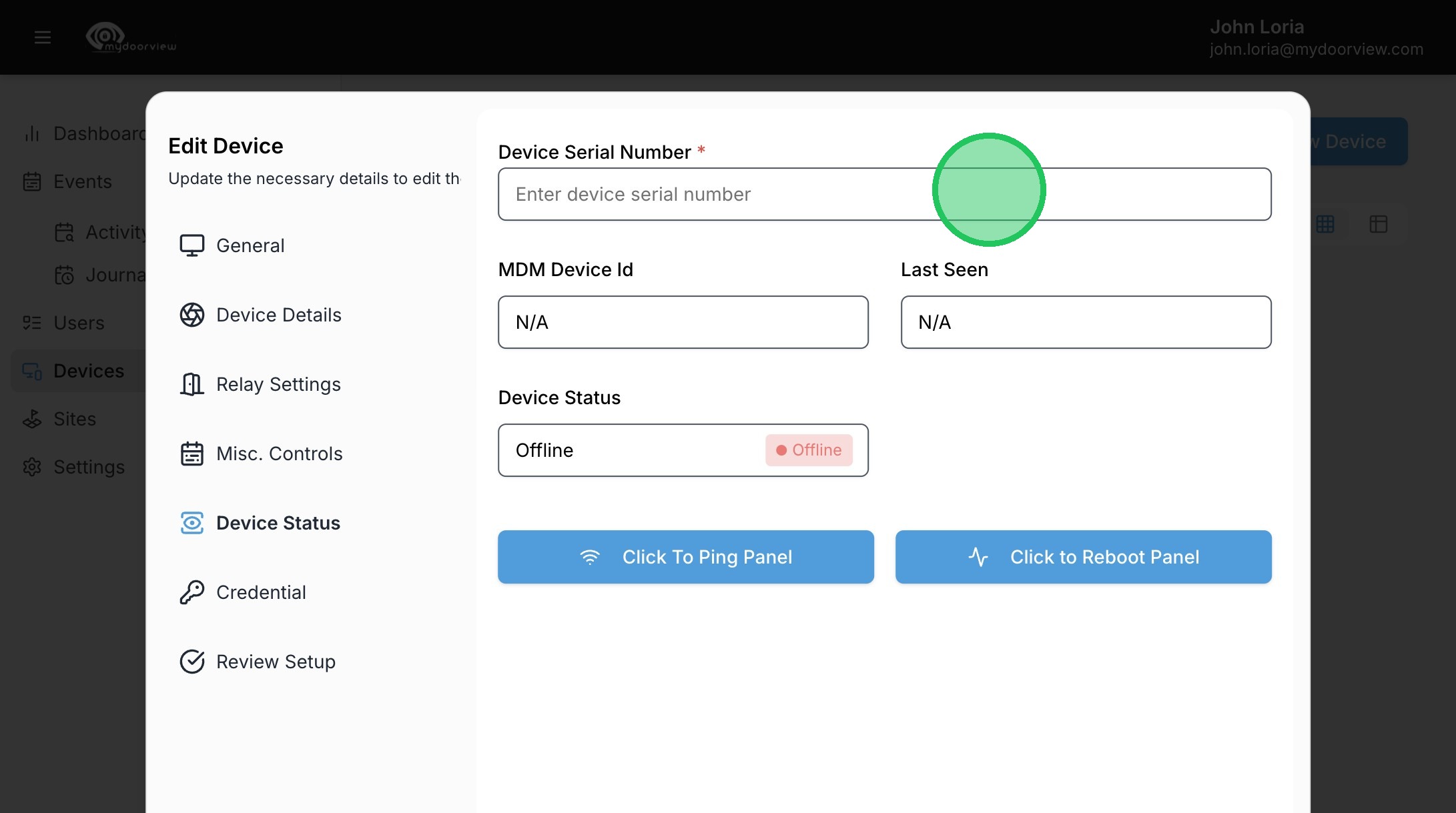
17. Enter the serial number of the device in the Device Status form. Click to Ping Panel to ensure the number is correctly entered and the device is pinged.
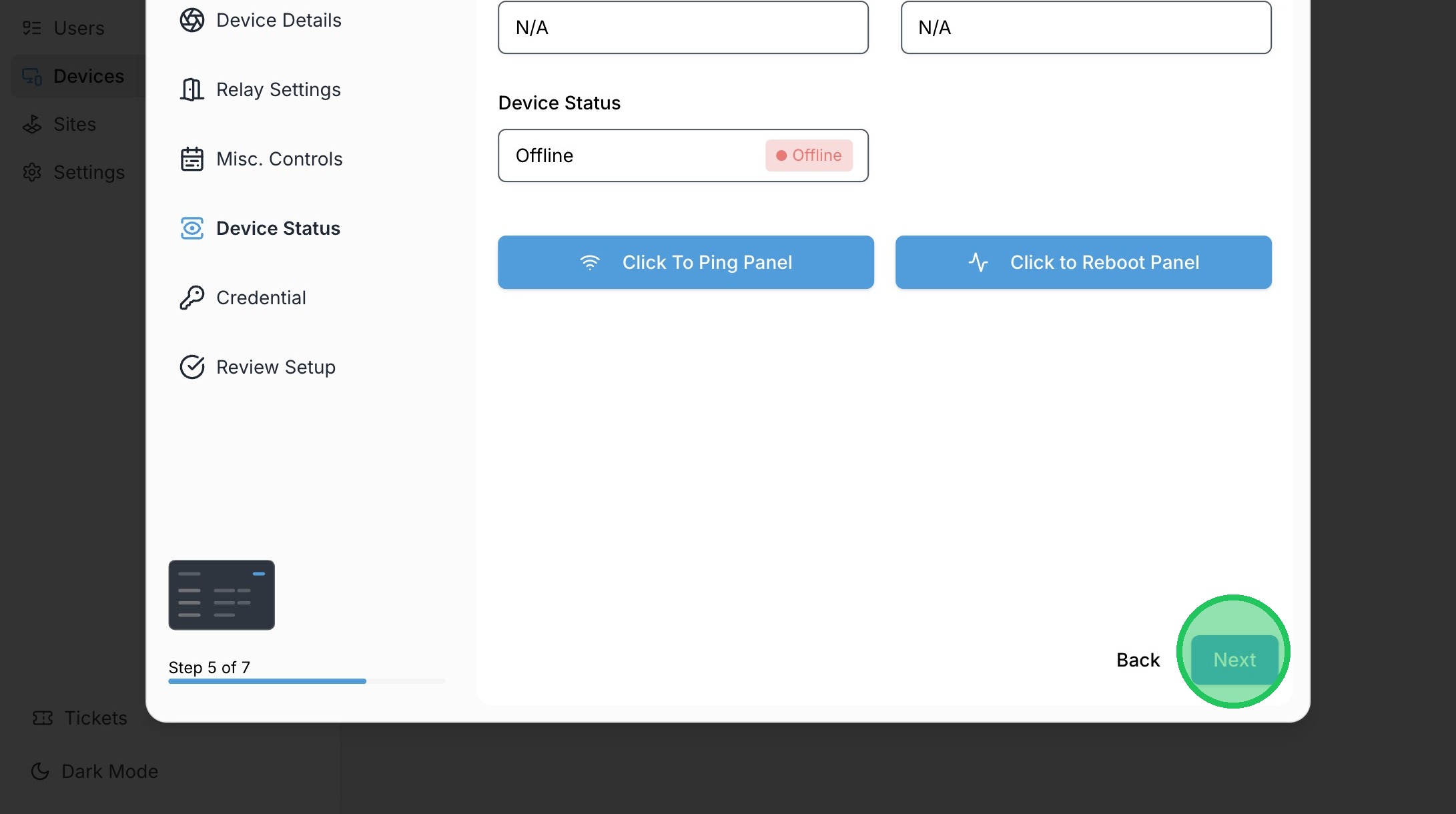
18. Click "Next"
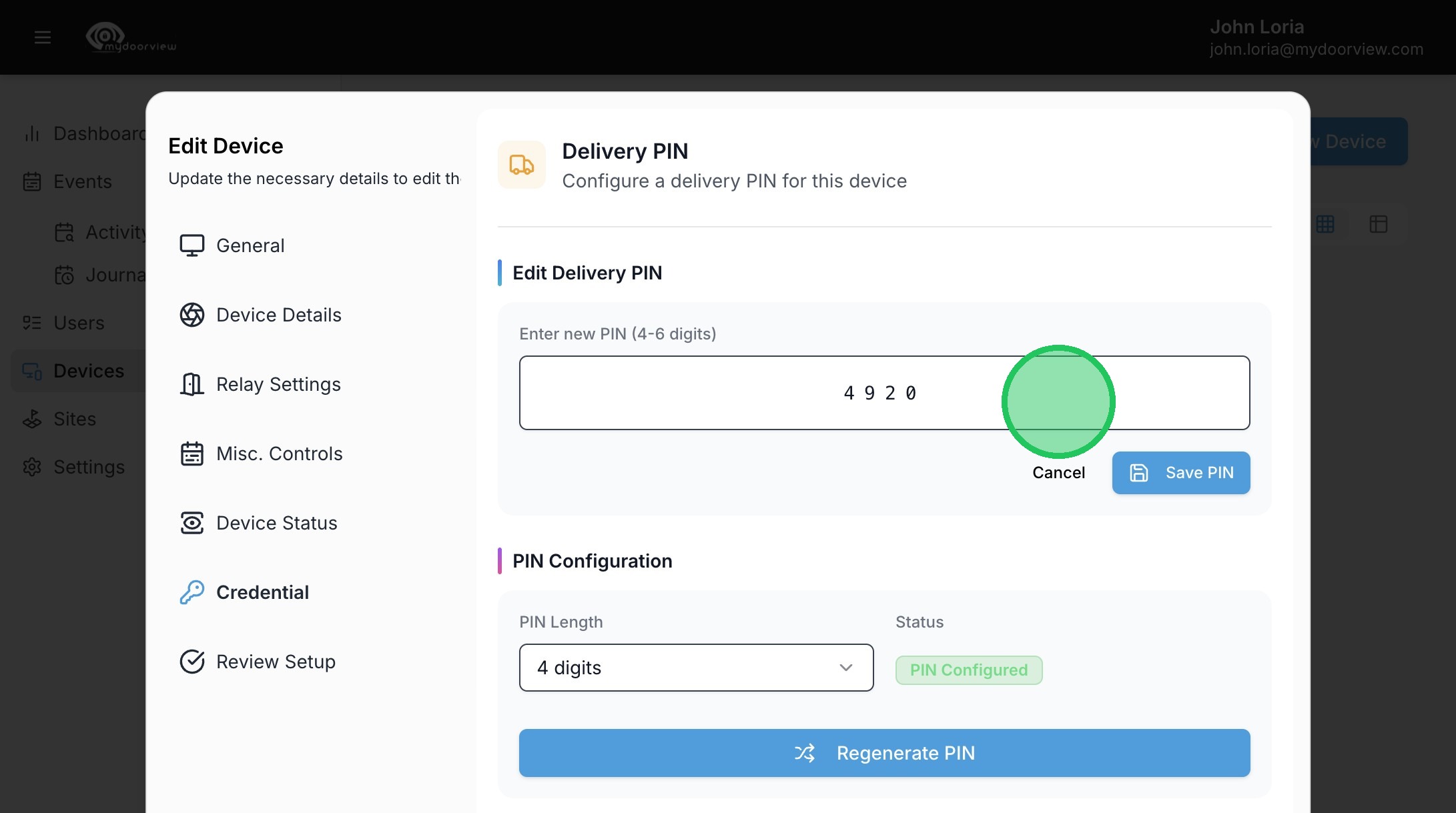
19. Click to add or edit a Delivery PIN for the Delivery button.
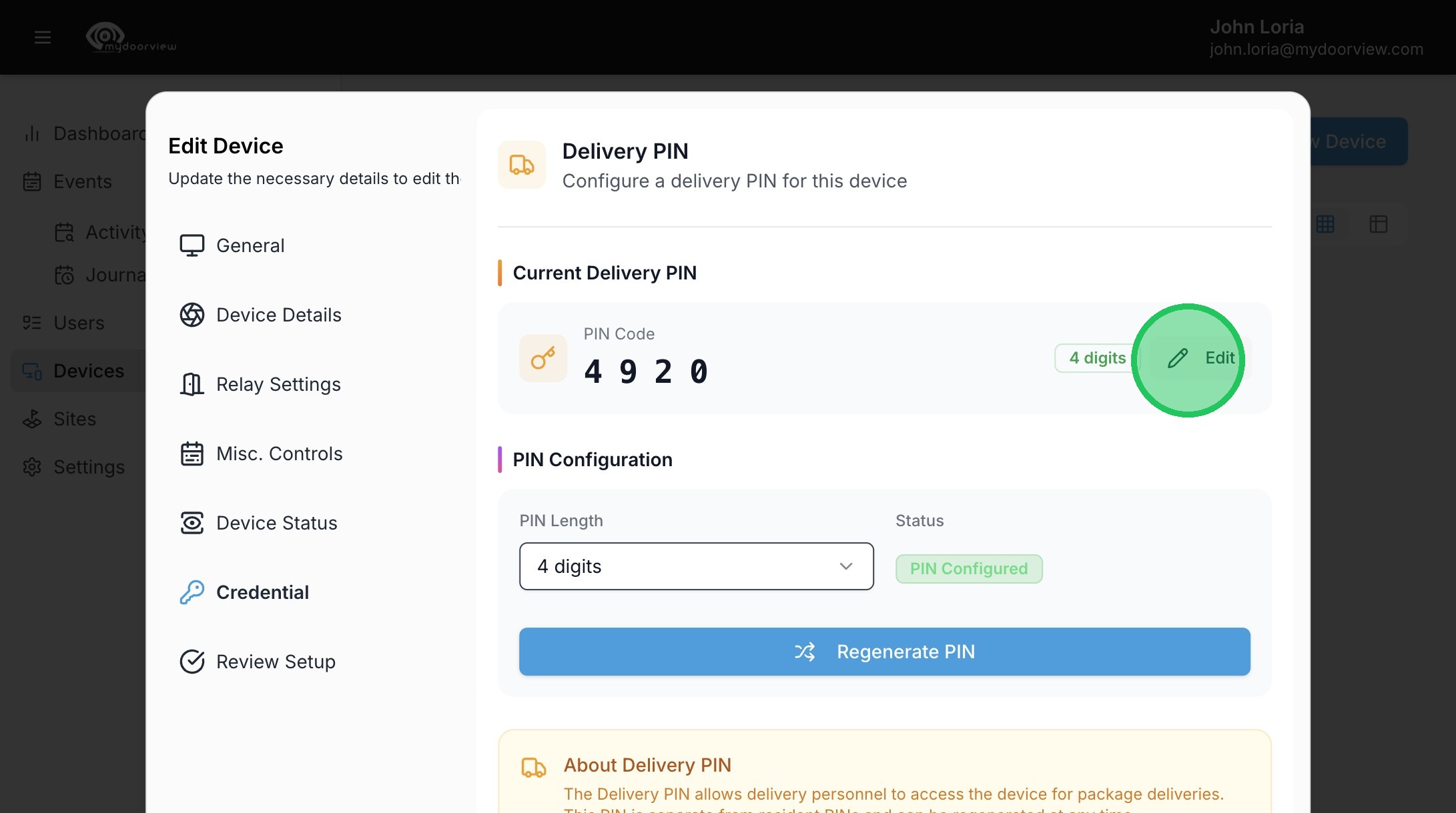
20. Click and manually enter the pin or hit Generate PIN to generate a random PIN. This can be edited later.
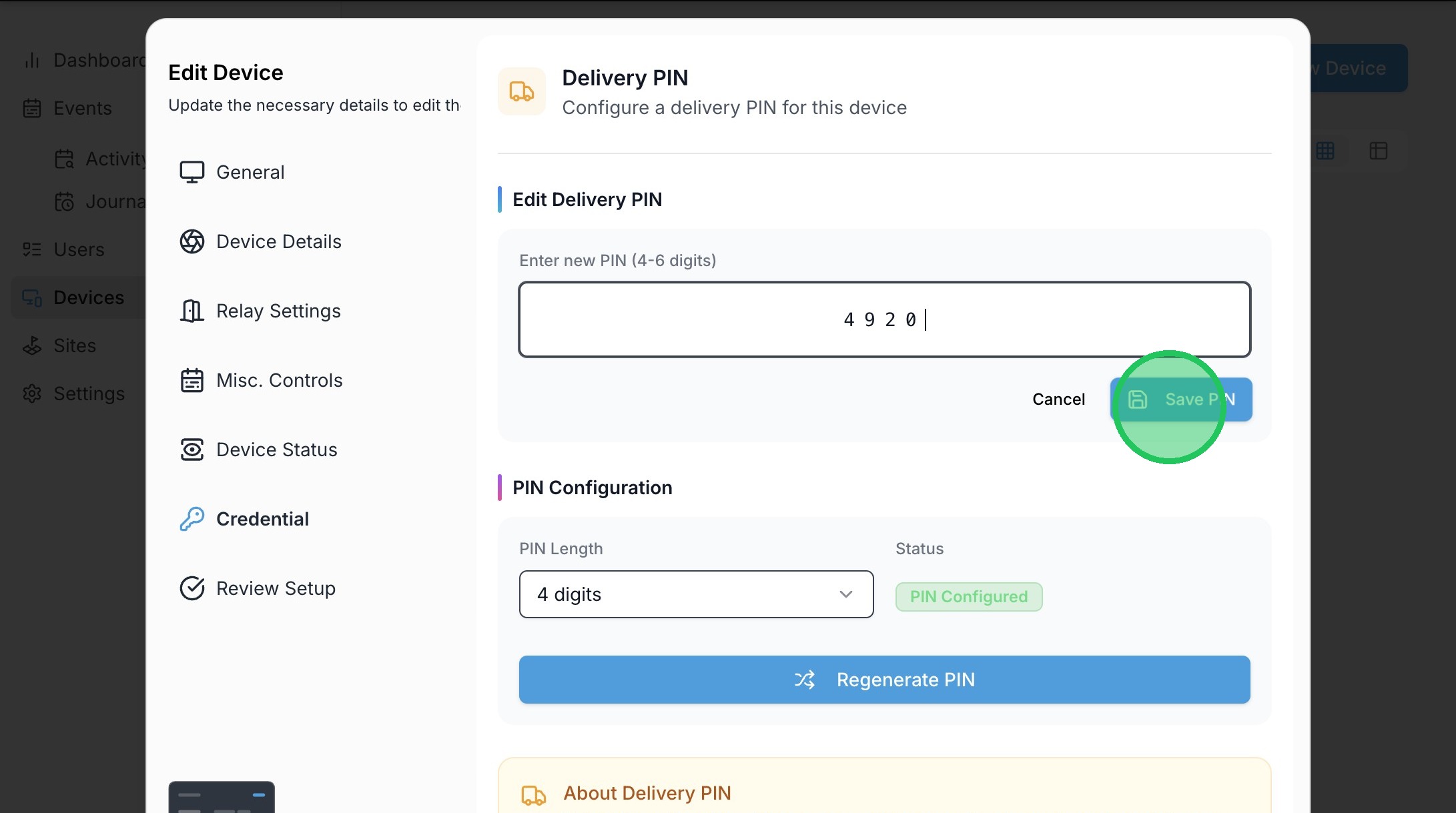
21. Click "Save PIN"
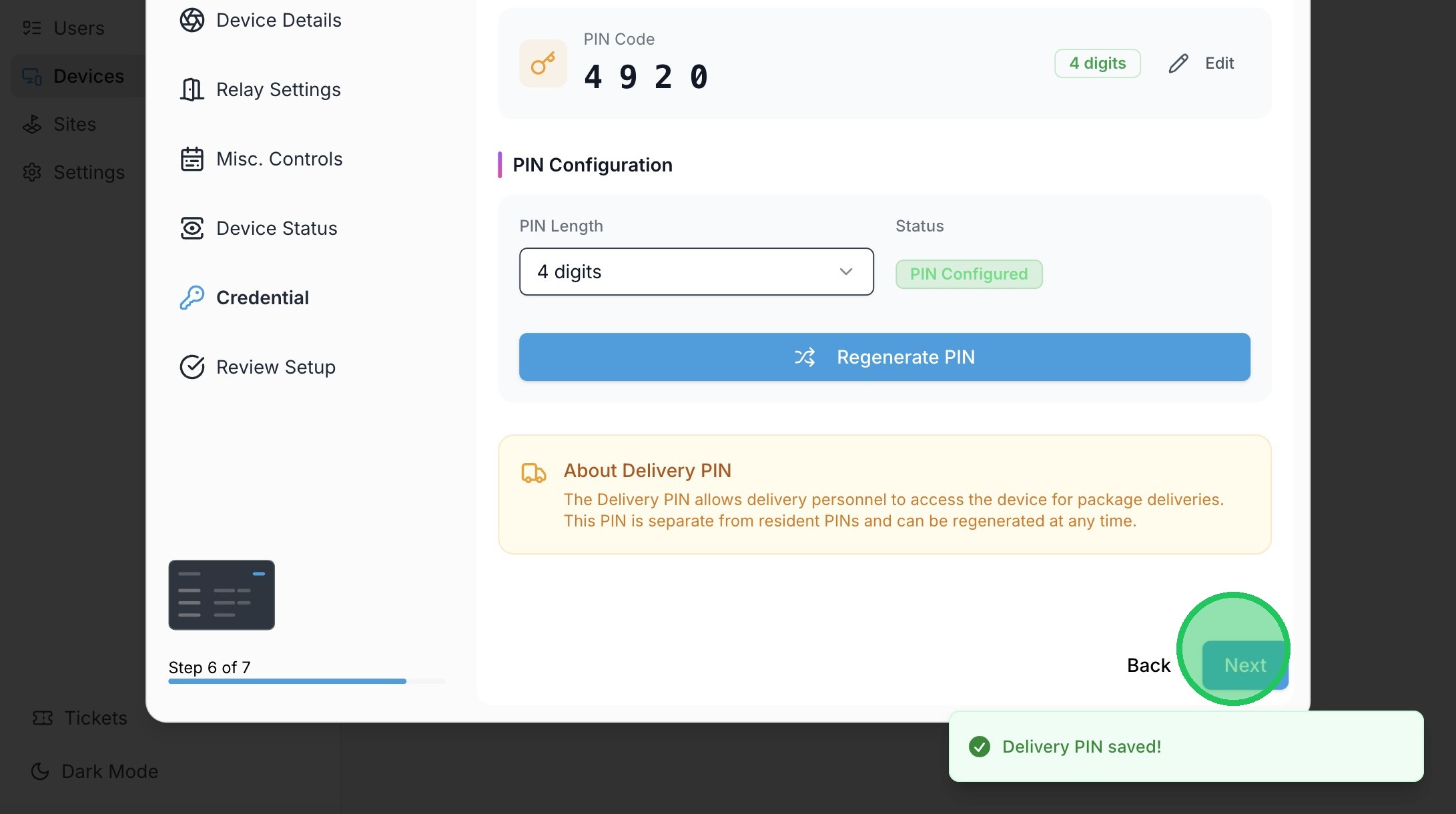
22. Click "Next"
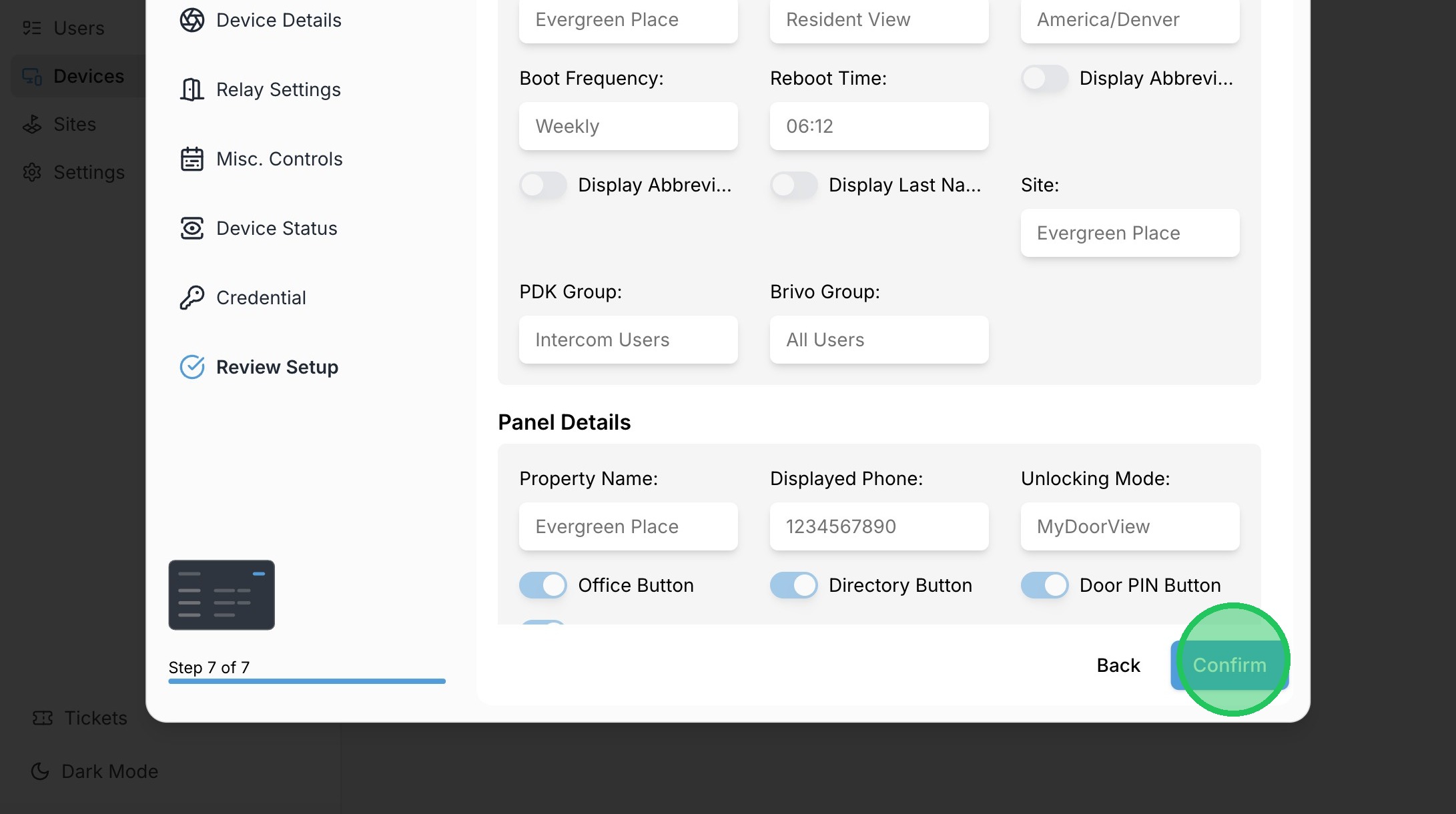
23. Click "Confirm"